
MacoLabs / 2026-09-28
A Character Swap on a Finger Snap - Free Higgsfield Tutorial
How I replaced myself in one section of a talking-head video with Genjutsu Object Swap, changed the voice, and finished the clip in Premiere Pro.
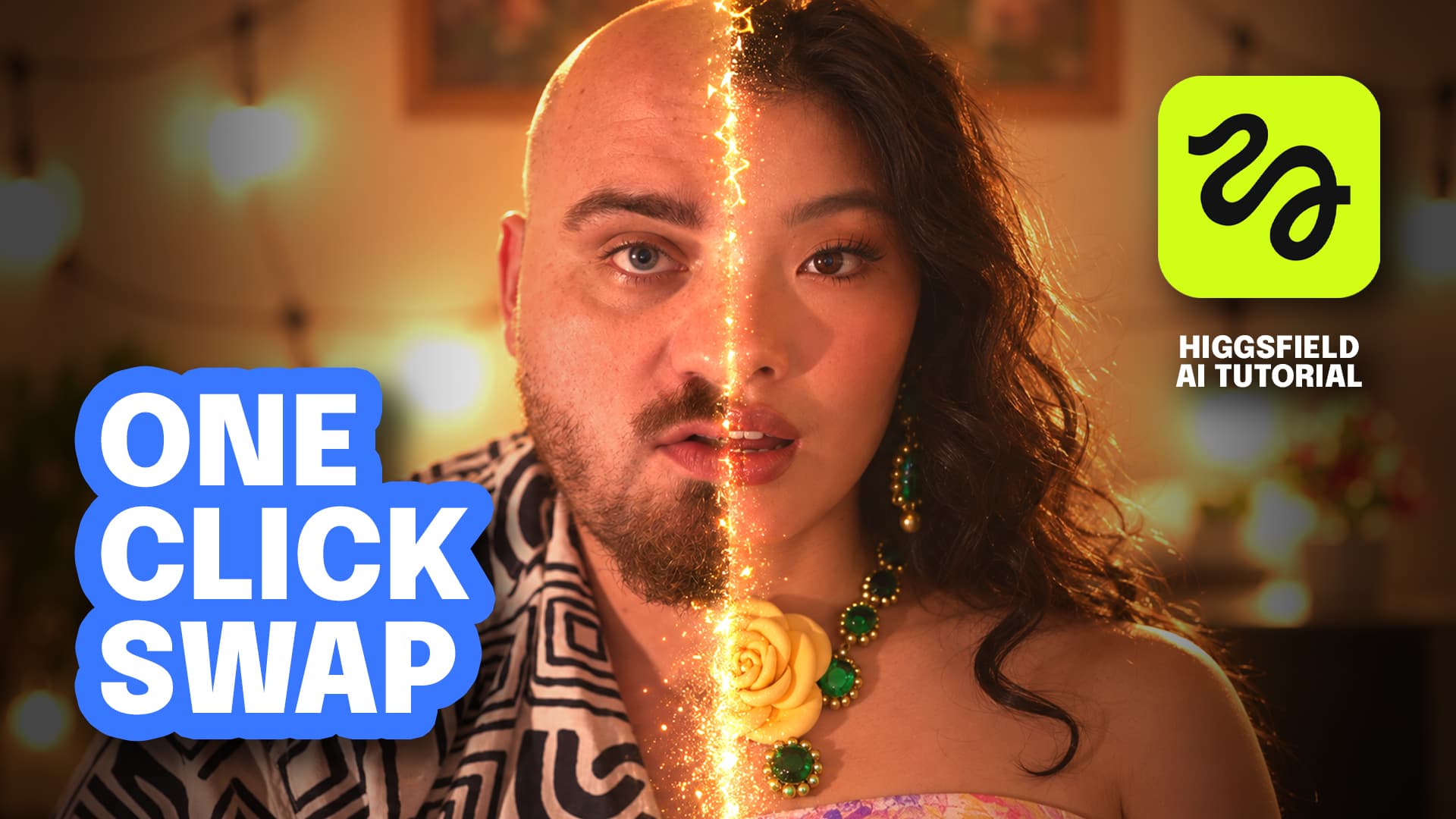
For a short social video, I wanted to speak to camera, snap my fingers, and transform into a different character without leaving the scene. I did not want a newly generated shot. The background, camera, lighting, gestures, lip movement and timing all needed to remain anchored to the original recording.
I used Higgsfield Genjutsu in Object Swap mode. This is more than a conventional face swap: it can replace a selected person or object while trying to keep the rest of the footage intact.
This tutorial documents the exact workflow I used: preparing the source clip, adding a reference, running Object Swap with the full prompt, changing the voice, and finishing the audio in Premiere Pro.
What Higgsfield can do—and where Genjutsu fits
Higgsfield is not one video model. It brings image, video, audio and generative editing tools into one creative environment. Higgsfield's own workflow guide separates the process into image creation, audio, video generation and post-generation editing. Cinema Studio provides camera, lens, lighting, colour and motion controls; Marketing Studio focuses on templated product and UGC creative; Genjutsu edits existing footage selectively.
The official Genjutsu page describes two main modes:
- Motion Transfer: carries motion, camera work and timing into a new cast or scene.
- Object Swap: replaces a selected character, outfit, product, location or object while preserving the rest of the source shot.
Object Swap was the right choice here. The performance, scene and edit point already worked. I only wanted to replace the male speaker with a female character.
1. Record the complete performance first
The source footage sets the ceiling for the result. I first recorded a normal talking-head video of myself. I performed both the finger snap and the section after it as though the same presenter would remain on screen.
Plan for the swap while shooting:
- keep the presenter visually separated from the background;
- avoid covering the face for long periods;
- make the movement before and after the transformation continuous;
- keep the light stable;
- use deliberate, trackable camera movement;
- record clear speech and lip movement that the replacement can inherit.
Genjutsu cannot rescue a badly timed snap or a broken performance. The source provides the motion and rhythm that the replacement character has to follow.
2. Export only the section that needs replacing
I did not upload the entire finished video. In Premiere Pro, I isolated and exported the section where I wanted to replace myself.
That has three advantages:
- fewer seconds need to be generated;
- the model receives one precise task;
- the original and generated sections are easier to align on the same timeline.
The current Genjutsu interface is designed around short reference clips. Supported duration, reference count, output resolution and credit cost can change, so treat the limits and price shown in the generator as authoritative before each run.
3. Select Genjutsu Object Swap
Open Higgsfield through this link, enter Genjutsu and select Object Swap.
The mode matters. Motion Transfer is useful when you want the original movement to drive a substantially rebuilt scene. Here, the objective was stricter: preserve the entire shot and alter only the original male speaker.
4. Upload the source video and the reference image
I used two inputs:
- Video 1: the short section exported from Premiere Pro, with me speaking;
- Image 1: a clear reference image of the woman I wanted to become.
Clarity matters more than spectacle in the reference. A visible face, distinctive hair, clothing and readable proportions help define the replacement character. Use only imagery you have the right to use and, when it depicts a real person, the appropriate consent.
5. State exactly what can change—and what cannot
This was my prompt:
Replace only the male speaker in @[Video 1](video_1) with the woman shown in @[Image 1](image_1). Use @[Image 1](image_1) as the identity and appearance reference for the replacement woman. Preserve the original background, objects, lighting, colors, shadows, camera movement, framing, composition, timing, gestures, hand movements, facial performance, lip movements, and audio from @[Video 1](video_1). Keep everything outside the original male speaker unchanged. Do not redesign, regenerate, restyle, relight, or modify the environment. This is a localized character replacement only.The prompt repeats the boundaries deliberately. It defines not only what to replace, but everything the edit must preserve:
- only the male speaker may change;
- the image controls the new identity and appearance;
- background, objects, light, colours and shadows remain;
- camera movement, composition and timing remain;
- gestures, hands, facial performance and lip movement remain;
- the original audio remains during this generation step.
That is the distinction between a local character replacement and a full scene regeneration.
6. Generate, then inspect the transition frame by frame
Do not review only the replacement face. Check whether:
- the background texture has changed;
- the fingers and snap remain intact;
- the new mouth follows the original speech;
- hair or clothing jumps at the edit point;
- camera movement and lighting remain stable;
- the first and last frames align with the untouched footage.
Higgsfield's Genjutsu guide positions Object Swap around changing a defined element while preserving the source motion and shot structure. Every output still needs inspection. Fast motion, occlusion, very different body proportions, or poor separation between the presenter and background can create artefacts.
7. Use Change Voice
Once the Genjutsu result was ready, Higgsfield offered a Change Voice action. It can replace the existing speech with a selected voice without regenerating the video.
According to the Higgsfield Audio guide, the Change Voice workflow takes an existing video, lets you choose a preset or permitted custom voice, and generates the new audio layer. In my clip, this completed the transformation: the female character no longer carried the original male voice.
Only clone or use a voice you are authorised to use. If the result could mislead viewers, disclose that the content was modified with AI.
8. Return to Premiere Pro and finish the audio
I placed the generated, voice-changed section back on the original Premiere Pro timeline. My finishing chain was:
- Multiband Compressor;
- the Broadcast preset;
- then Amplify: +3 dB.
This is not a universal mastering recipe. The Broadcast preset gave my speech a denser, more even presentation, and +3 dB brought this particular clip to the level I wanted. Monitor for distortion and pumping, and listen on both headphones and a phone speaker before export.
When this trick works well
Character replacement is strongest when the viewer sees the same shot and performance continue while only the identity changes. Useful applications include:
- transformations triggered by a snap or hand gesture;
- one line performed as several characters;
- character or wardrobe changes without a reshoot;
- a short social-media hook;
- several creative variants built from one performance.
It is a weaker fit when the replacement must perform an entirely different action, make new physical contact, or trigger a new camera move. That is no longer a local character swap; it is a new scene.
Quick checklist
- Record a clean, complete performance.
- Export only the short section that needs replacement.
- Open Genjutsu in Object Swap mode.
- Upload the clip and a reference image you are authorised to use.
- Name the target and every element that must remain unchanged.
- Inspect hands, lips, background, light and edit points.
- Use Change Voice if the new character needs a different voice.
- Reinsert the clip, process the audio, and meter the final export.
The finger snap is the visible trick. The result feels convincing only when everything around it remains invisibly consistent.
Sources consulted
- Higgsfield Genjutsu — official product page
- Meet Higgsfield Genjutsu — official guide
- Higgsfield Audio: Voiceover, Change Voice and Translate
- Image, voice, video and editing in one Higgsfield workflow